

When someone asks Copilot “What were our sales last month?”, which measure should it use? Does “sales” include returns? Does “last month” refer to invoice date or order date? These choices belong in your semantic model and its business context.
Power BI’s Prep data for AI experience helps you make those choices explicit. This guide shows how to use it in the Power BI Service, with a simple sales model as an example.
Before opening the wizard
Check that you can edit the semantic model and that Copilot is enabled in the workspace where you will test it. Microsoft’s current documentation also requires Q&A to be enabled on the model; disabled preparation tabs can indicate that this setting is off.
Start with a model that has clear relationships, preferably a star schema, and explicit measures such as [Net Sales] and [Gross Margin %]. Use readable field names and descriptions that explain units and definitions. The wizard adds context; it does not repair incorrect DAX or relationships.
Step 1 — Open Prep data for AI in the Service
- Open your workspace in the Power BI Service.
- Select the semantic model, rather than a report.
- On the model’s page, click Prep data for AI in the top ribbon.
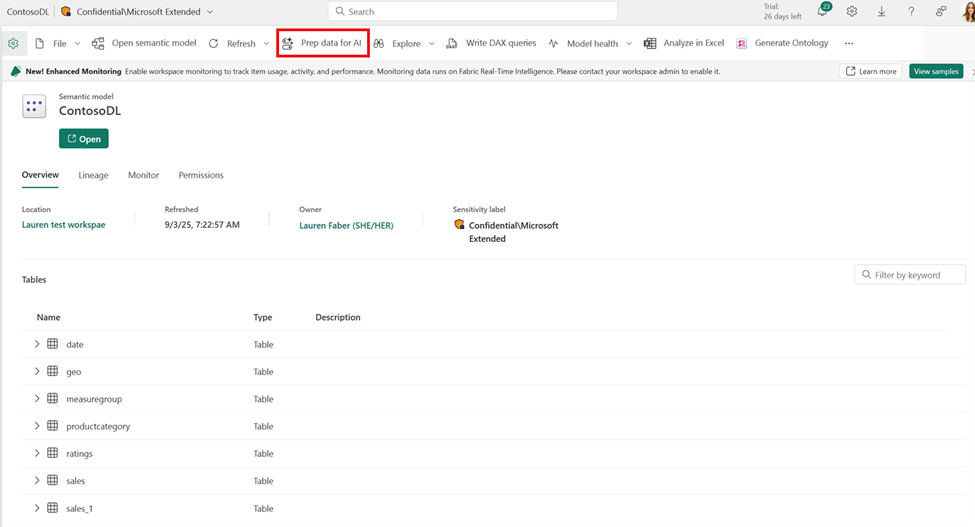
The dialog brings together Simplify the data schema, Verified answers and Add AI instructions. These settings belong to the semantic model, so you prepare a shared data foundation for reports that use it.

Step 2 — Select a focused AI data schema
Open Simplify the data schema. Select the business fields and measures Copilot needs for your intended questions, then choose Apply.
For a sales model, a useful starting selection is:
- Measures: [Net Sales], [Gross Margin %] and [Customer Count].
- Dimensions: Date, Product Category, Customer and Region.
Leave out confusing alternatives, staging columns and technical identifiers when they add no value to those questions. Keep relationships intact: the selection does not replace your model structure.
Scope matters: this schema guides model-based data answers. It does not restrict report summaries or every other Copilot capability. It is not a substitute for permissions, RLS or OLS.
Step 3 — Tell Copilot what your business terms mean
Open Add AI instructions. Explain which measures to use, what common terms mean and which date basis applies. Adapt this illustrative example to your actual model:
Metrics
- For sales or revenue, use [Net Sales].
- [Net Sales] is in EUR and is net of returns.
- For margin percentage, use [Gross Margin %].

Dates
- Use 'Date'[Date] for order-date analysis.

Ambiguity
- If “performance” could mean sales, growth or margin,
  ask which metric the user wants.
Choose Apply. Use the exact object names from your model, group related rules and avoid contradictory instructions. These are guidance interpreted by an LLM, not enforced calculation rules.
Step 4 — Create a Verified Answer from a report visual
A Verified Answer is a curated visual response linked to trigger phrases. Create it from a report; use the model’s wizard to manage it afterwards.
- Open a report built on the prepared model in a Copilot-enabled workspace.
- Switch to Edit mode and select a supported visual—for example, net sales by product category.
- Open the visual’s … menu and choose Set up a verified answer.
- Add natural trigger phrases, such as “Net sales by product category” and “Show revenue by category”.
- Configure any supported filters you want users to change, then select Apply and save the report.
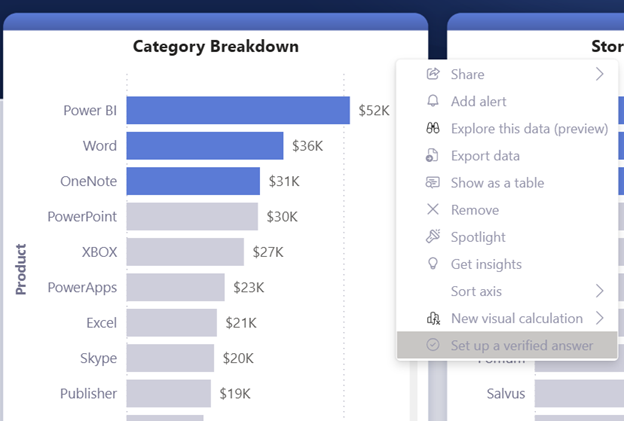
For an adjustable Region filter, add it to the report’s filter pane and leave it at All during setup. A fixed value such as Region = North becomes part of the saved answer. Do not assume a slicer becomes an adjustable Verified Answer filter.
Back on the model, open Prep data for AI → Verified answers to maintain phrases and filters. Changing the original visual does not automatically refresh the saved answer.
Step 5 — Test questions, not just settings
Close and reopen the Copilot pane after changes. Test in the Service, compare results with trusted report visuals and check How Copilot arrived at this when available. Allow a few minutes if changes have not taken effect.
| Test question | What to check |
|---|---|
| What were our sales in September 2026? | [Net Sales], EUR and the intended date field. |
| Show revenue by category. | The intended Verified Answer is triggered. |
| How is performance? | Copilot asks which metric you mean. |
Test secured-user scenarios separately. Verified Answers have specific limitations, including with RLS/OLS and Fabric IQ; check the linked documentation before relying on them in those scenarios.
Step 6 — Mark the model Approved for Copilot
Once you have validated the results, open the model’s Settings, expand Approved for Copilot, select the checkbox and click Apply. Older material calls this setting “prepped for AI”.
This is an author’s approval, not an automated readiness score. Re-test when measures, relationships or business definitions change.
Keep these distinctions clear
- Good modelling establishes correct calculations and relationships.
- The AI schema focuses relevant model-based answers.
- AI instructions explain business meaning and preferences.
- Verified Answers supply curated responses to matching questions.
Based on Lars Andersen’s “Are your semantic models ready for Copilot?” presentation and Microsoft’s documentation. Screenshots reproduce Microsoft’s published Service examples.
Further reading: Prep data for AI · AI data schemas · AI instructions · Verified Answers · Screenshot source
